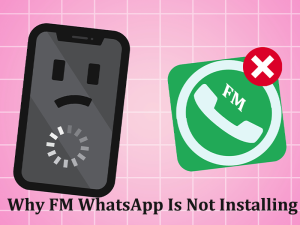
Many users face a recurring issue when attempting to install FM WhatsApp. You tap on the APK file, anticipate a quick installation, but either nothing happens or an error appears without a clear explanation. This can be quite frustrating, especially if you‘ve previously installed similar apps without trouble. Fortunately, the root cause usually lies in just a few common problems.
Unknown Sources Not Enabled
One of the most frequent culprits is forgetting to enable installations from unknown sources—a simple but often overlooked step. Since FM WhatsApp isn‘t available on the Google Play Store, Android devices block its installation by default.
To fix this, head to your phone‘s settings, locate the Security or Privacy section, and enable installations from unknown sources (or from your browser or file manager). Once that’s done, try opening the APK again. In many cases, the installation proceeds without a hitch after this step.
Conflict with an Existing WhatsApp Version
FM WhatsApp sometimes uses the same package name as the official WhatsApp app in certain builds. If you already have WhatsApp installed on your device, it might block the new app entirely or display an “App not installed“ error message.
To resolve this, check if you have the official WhatsApp or another WhatsApp mod installed. If so, uninstall it first, but make sure you back up your chats for FM WhatsApp, your chats if they are important to you. Losing valuable chat history is one of the most common regrets users have when encountering this issue.
Corrupted or Incomplete APK File
Occasionally, the issue isn‘t with your device but with the APK file itself. Interrupted downloads or unreliable sources can result in corrupted or incomplete files.
If the downloaded file size seems off or the download process failed partway through, delete the file and redownload it from a trusted source. A fresh and complete file often resolves installation errors that might initially seem baffling.
Insufficient Storage Space
Though this might seem like a minor detail, it’s a common issue that many overlook. If your phone has little internal storage left, Android may silently prevent installations altogether. FM WhatsApp requires free space not just for the app itself but also for storing media and data.
Check your storage settings and make necessary room by deleting unused files or apps. Sometimes, freeing up even a few hundred megabytes is enough to get things running smoothly.
Android Version Compatibility
Your Android version could also be to blame if it’s outdated or runs a heavily customized ROM. Users with older devices or highly modified systems often report installation issues even when every other aspect seems fine.
Check your current Android version in your phone’s settings. If it’s very outdated, FM WhatsApp may fail to install even when no clear error shows up. In this case, try installing a newer build from the [FM WhatsApp latest version download] if your device supports it. If your phone can’t run the newest release, using a [FM WhatsApp old versions download] that matches your Android system is often the safest workaround.
Play Protect Blocking the Installation
Google Play Protect sometimes identifies modified apps like FM WhatsApp as unsafe and intervenes by blocking them. This could lead to warnings or cause the app installation to abruptly halt without explanation.
To work around this, temporarily disable Play Protect, complete the installation process, and then re-enable it afterward. Just remember only to install APKs from sources you trust to avoid compromising device security.
Final Quick Checks
Before giving up entirely, run through these basics: Is unknown sources enabled? Is the APK file fully downloaded? Is WhatsApp already installed on your phone? Do you have sufficient storage space? These simple checks often resolve installation problems most users encounter.
In summary, difficulties installing FM WhatsApp are usually tied to small but resolvable issues like settings adjustments, file conflicts, or download problems. Take a moment to address these potential factors, and in most cases, you’ll find that the app installs successfully once everything is in order.